Using non-Latin Fonts
If you want to show content with non-Latin fonts on PIXILAB Player (e.g., Japanese, Korean), you need to provide suitable fonts using a small smippet of custom CSS. Here's an example of Japanese characters used on PIXILAB Player.
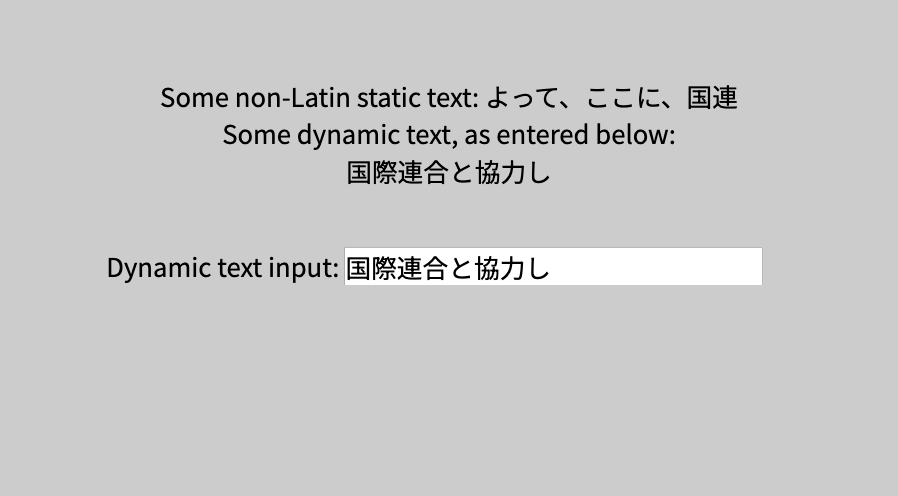
 NOTE: While non-latin characters typically work automatically on laptop and desktop computer browsers, PIXILAB Player does not include non-latin fonts, which is why you must provide such fonts yourself for your text to appear there.
Obtaining the Font
You need a suitable font file containing the glyphs (characters) for the language(s) you want to show. Fonts are available from a number of font foundries. Free fonts are also available, such as this one from Google Fonts:
https://fonts.google.com/noto/specimen/Noto+Sans+JP
When used with Blocks. you probably want to host the font file on the Blocks server rather then loading it from Google's servers. To do so, you need the font file in a suitable format, such as WOFF2. Here's a service that provides Google font files suitable for self hosting
https://gwfh.mranftl.com/fonts
Look for a suitable font in the list to the left, such as "Noto Sans JP". Chose which "character sets" to include, such as japanese and latin, then click the "Download files" button to get the font file. This downloads a zip containing a woff2 font file. Unpack the zip then use it in your Blocks project as exemplified by this application note, which contains a complete working Blocks root demoing how this works. Here's some general information on how to use a downloaded application note.
Activating the Font in Blocks
If you're using a non-Latin font, you likely want that font available everywhere in your project. This makes it suitable for inclusion using the global CSS feature of Blocks, which is activated in your server's configuration file like this:
# Specifies a default CSS file applied to all Spots, relative to the public directory
defaultSpotCSS: styles/my-style.css
This refers to a CSS file that you must place at public/styles/my-style.css on your Blocks server. To use the font, put the following into that file:
/* Example of how to use non-Latin font in Blocks, here applying the Noto Sans
  font with Latin and Japanese glyphs, obtained from

	https://gwfh.mranftl.com/fonts
 */
@font-face {
	font-family: 'NotoSansJP';
	font-style: normal;
	font-weight: 400;
	src: url('noto-sans-jp-v56-japanese_latin-regular.woff2') format('woff2');
}

/*  Apply that font to all Text blocks , text inputs and other controls
 */
.text-block, .ctrl-wrap {
	font-family: NotoSansJP, sans-serif;
}
NOTE: You can have additional styling in that file that you want to be applied globally. Find more on styling content in Blocks here.
As you can see above, the CSS loads the font by its file name "noto-sans-jp-v56-japanese_latin-regular.woff2". Adjust this to the name of the font file you downloaded and place that font file next to the CSS file in the public/styles/ directory.
Using the Font
Restart your Blocks server after making changes to the configuration file to pick up those changes. If you're using the example block from this application note, you should now be able to present that on any Spot, including PIXILAB Player.